1. Click the link to download and install
2. Install Software
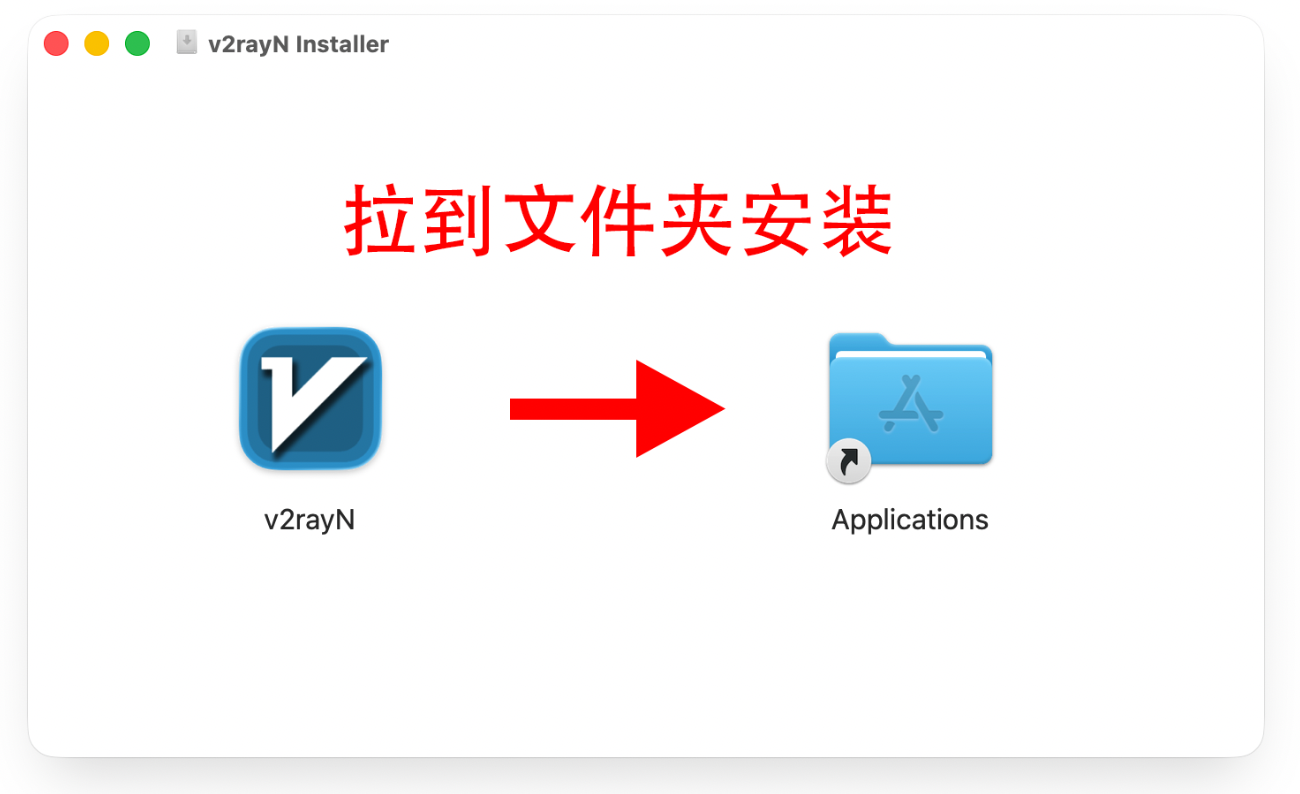
1. Open the downloaded .dmg file
2. Grant execution permission
If you see “Cannot verify developer” or “File is damaged” when opening the app, follow the steps below:- Open the Terminal app (found in Applications > Utilities).
- Enter the following command and press Enter:
- Enter your Mac login password when prompted (the password will not be visible). Press Enter again to open the software.
sudo xattr -r -d com.apple.quarantine /Applications/v2rayN.app

3. Import Nodes
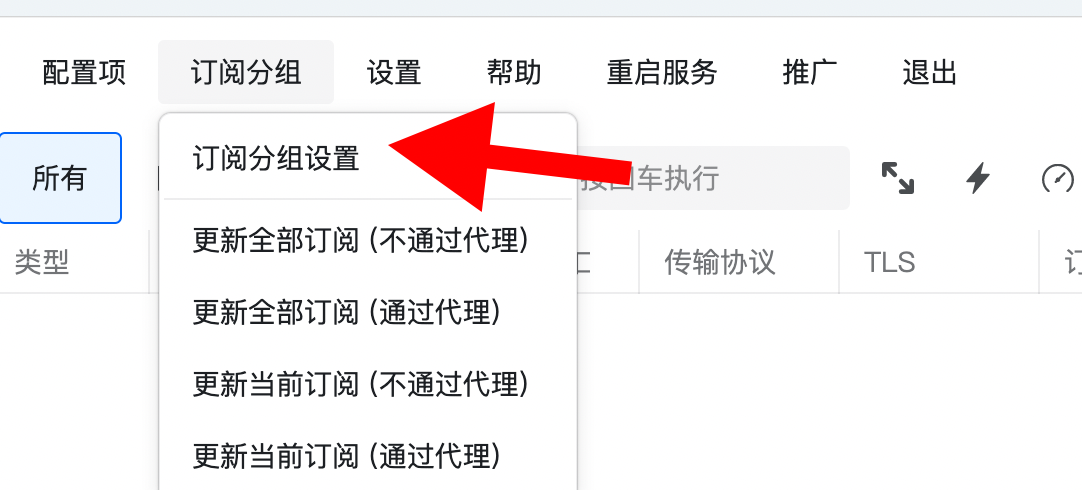
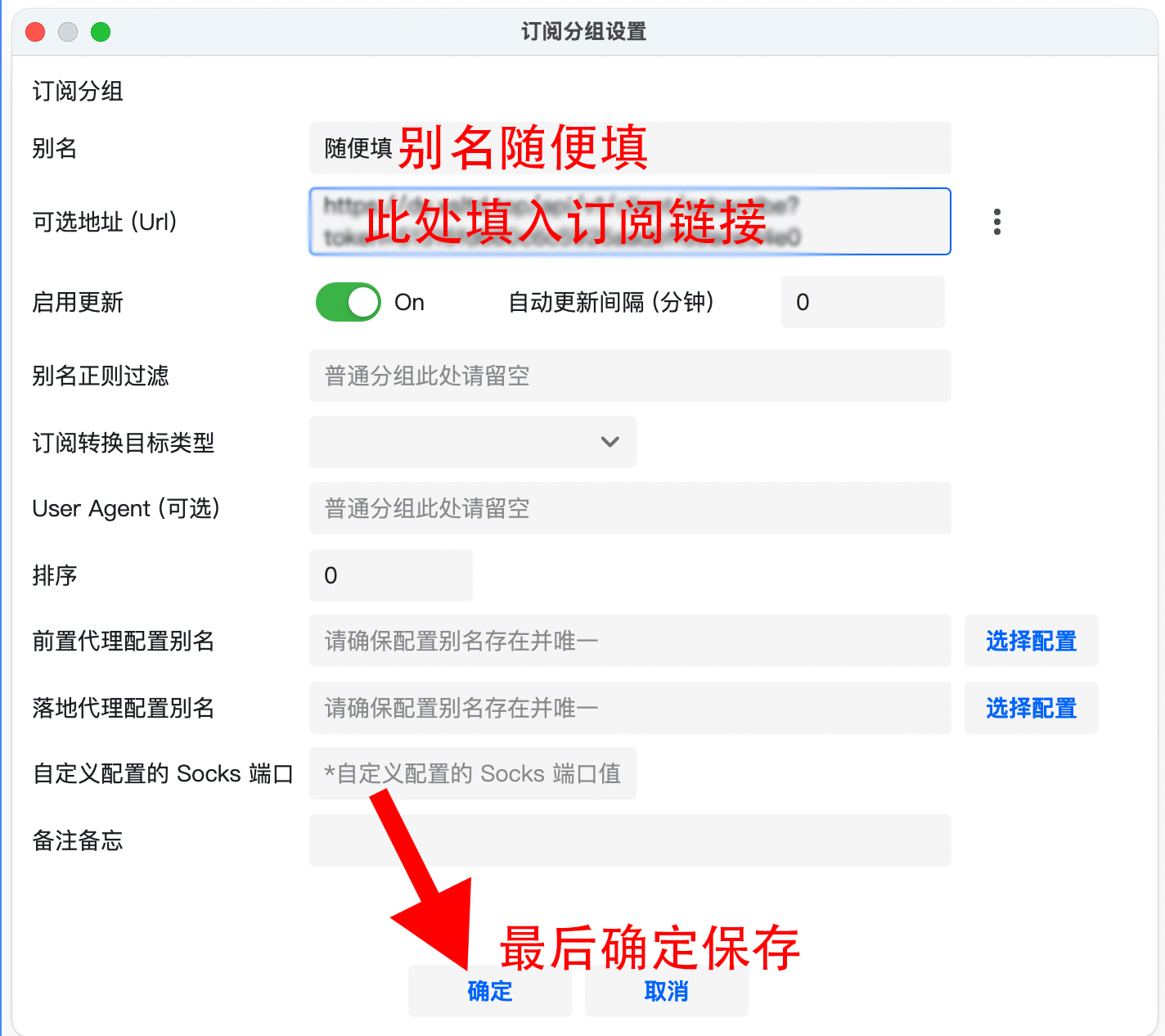
1. Click Subscription Group - Subscription Group Settings
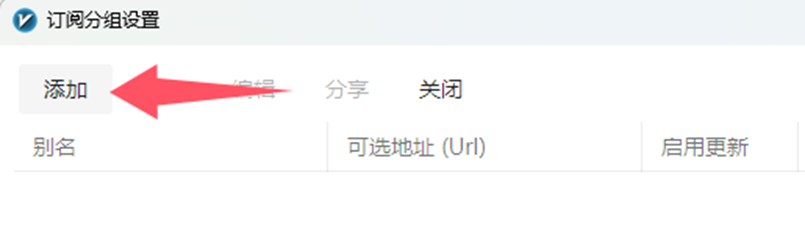
2. Click Add, enter the subscription link in Optional Address, then Save
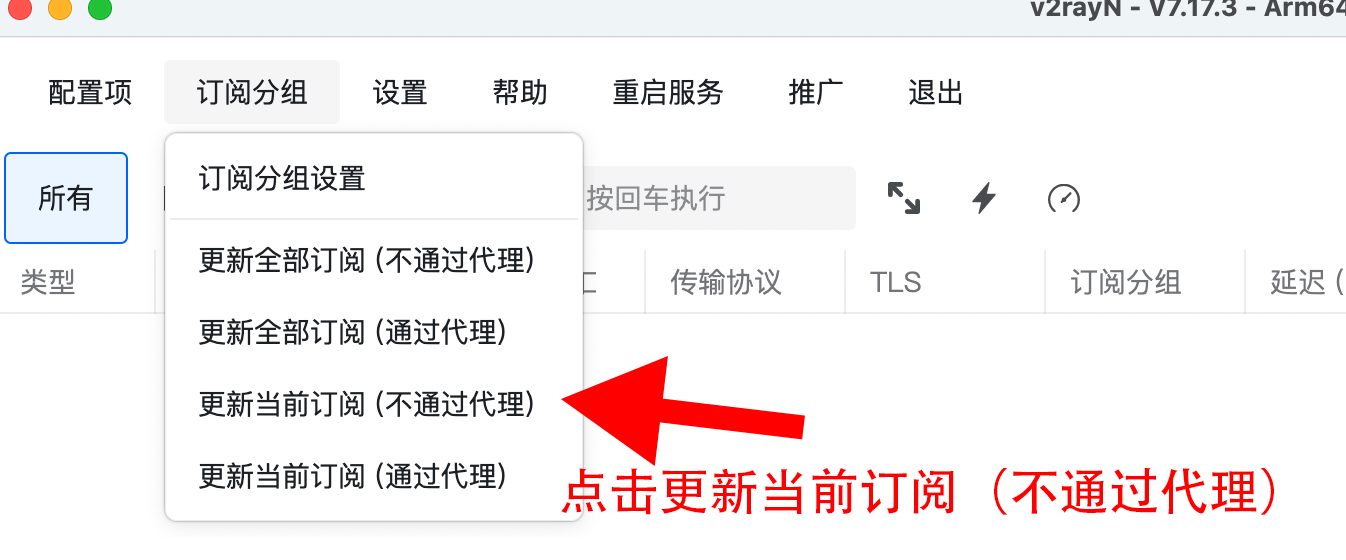
3. Click Subscription Group - Update Current Subscription (without proxy)
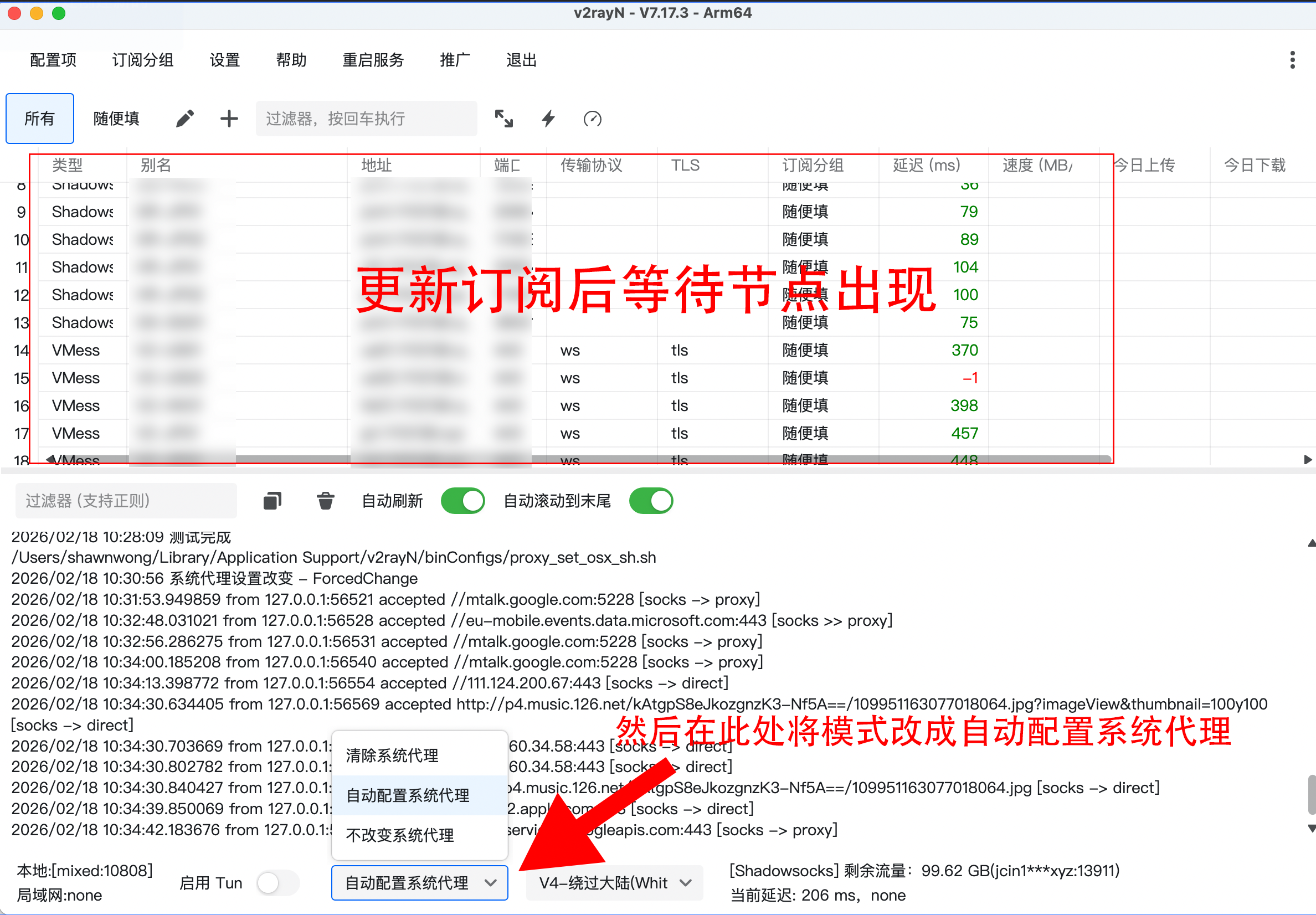
4. After the nodes appear, change Clear System Proxy at the bottom to Auto Configure System Proxy
Tips (Notes)
- 1. Speed depends on your local network. If it's slow, first open a domestic website such as Bilibili to rule out local network issues.
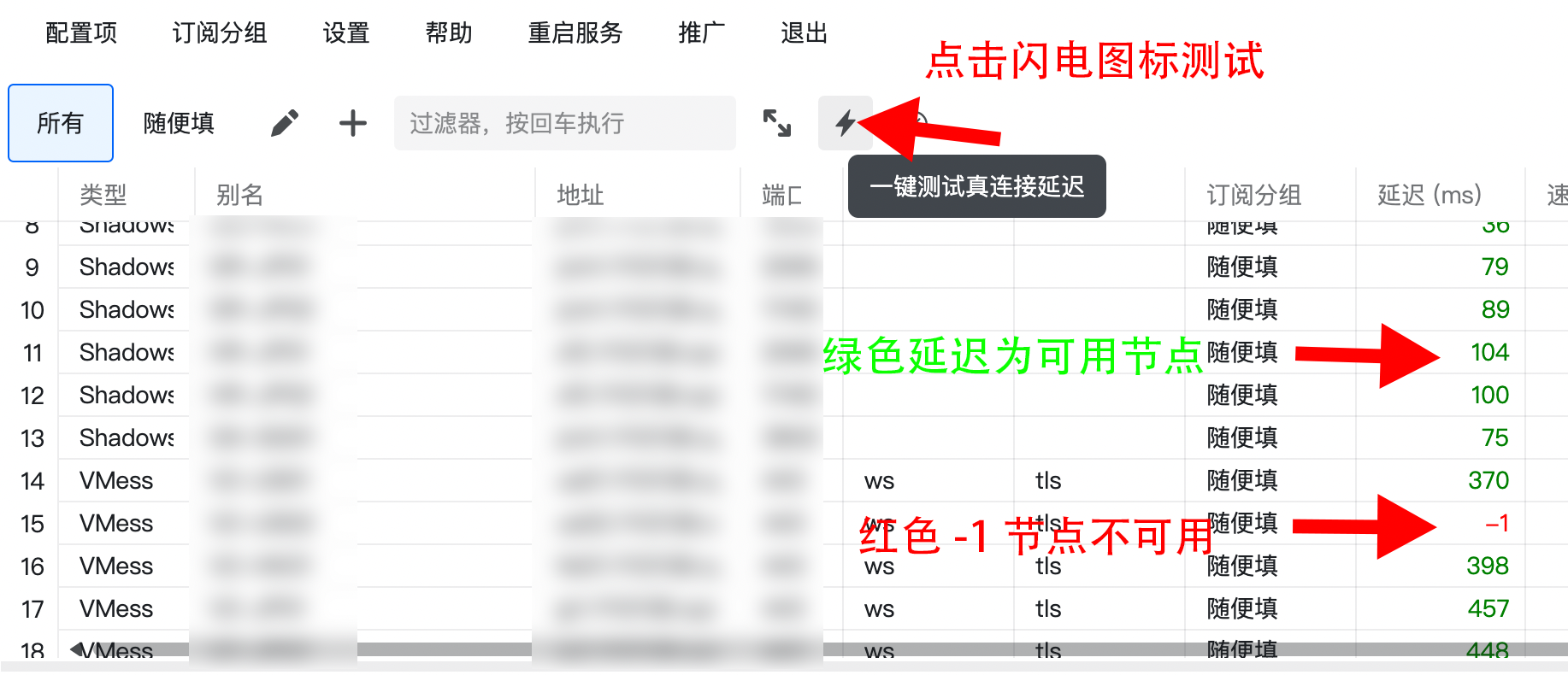
- 2. If the service is unavailable, test node availability as shown below. If the active node is unavailable, click a working node and press Enter to switch the active node.
- 3. To turn off the proxy, change Auto Configure System Proxy back to Clear System Proxy.
- 4. Node naming: The prefix indicates the node region, while the suffix indicates ISP optimization. Optimized nodes work with all ISPs but may have a higher traffic multiplier, e.g. 1.5X means traffic is calculated at 1.5 times.
Advanced: Manually set routing to fix slow domestic websites
1. Find the domain in the log box
Routing is domain-based. Sometimes misjudgments occur, routing domestic sites through proxy (labeled proxy). For example, if you visit Lingxing, you can find its domain in the log:
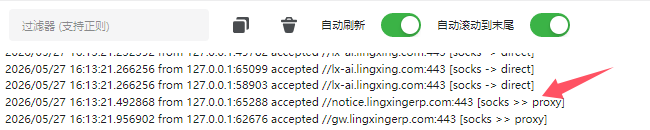
- As shown, you might see direct. 'direct' means the proxy is bypassed. If the route is 'direct', the slowness is an issue with the website itself, not the proxy.
- If the domain shows proxy, that's the cause of slowness: domestic site routed through proxy. We can fix this with custom routing.
2. Set Custom Routing
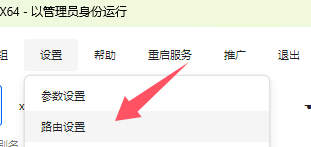
Go to: Settings - Routing Settings - V4 - Bypass Mainland (Whitelist) - Bypass Chinese domains
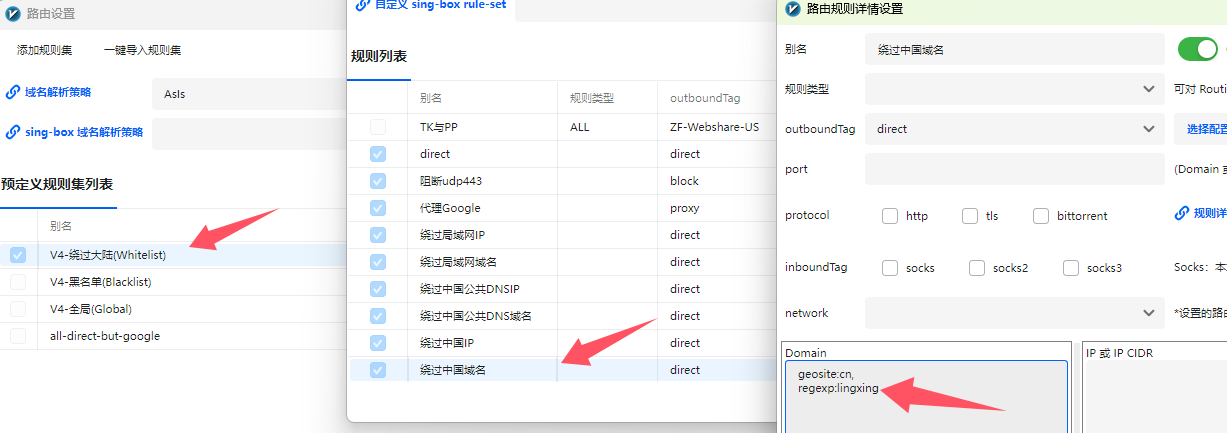
In the Domain box, add an English comma , at the end of the last line, press Enter to start a new line, and add the domain you want to direct connect. Example:
regexp:lingxing(This matches any domain containing 'lingxing' for direct connect)domain:lingxing.com(This matches any domain ending in lingxing.com, e.g. lx-ai.lingxing.com, but not lingxingerp.com)
1. Copy the node, then press Ctrl(⌃)+V in the app to paste and import it, or click Configuration - Import Share Links from Clipboard
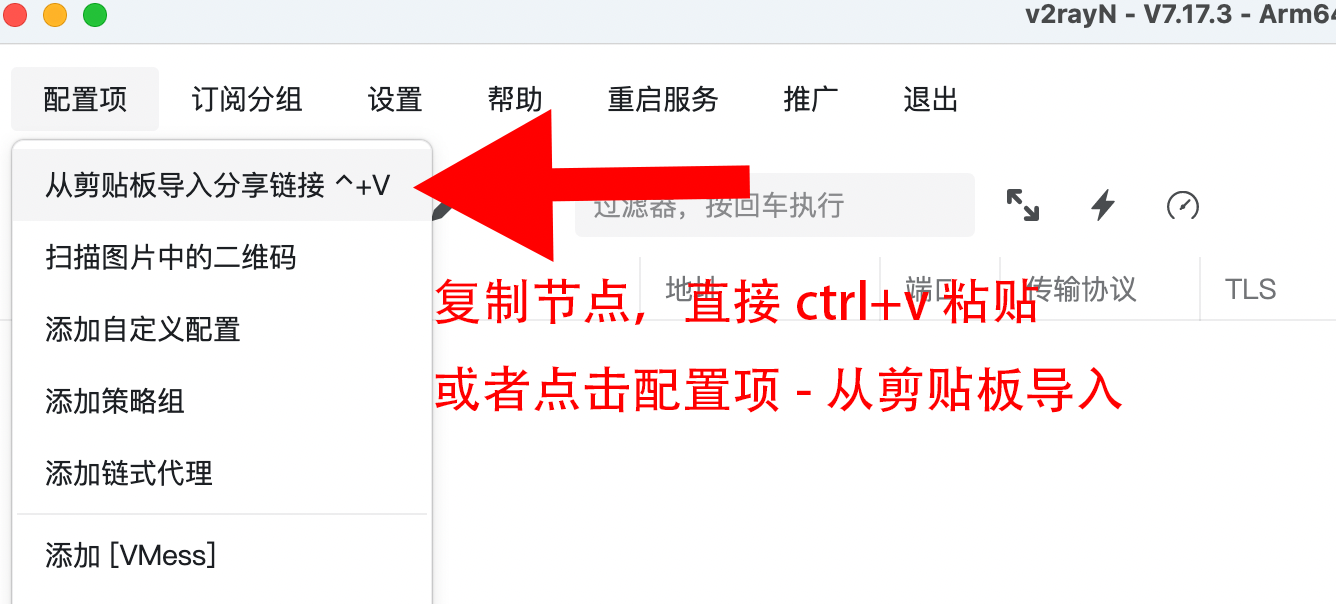
2. After the nodes appear, change Clear System Proxy at the bottom to Auto Configure System Proxy
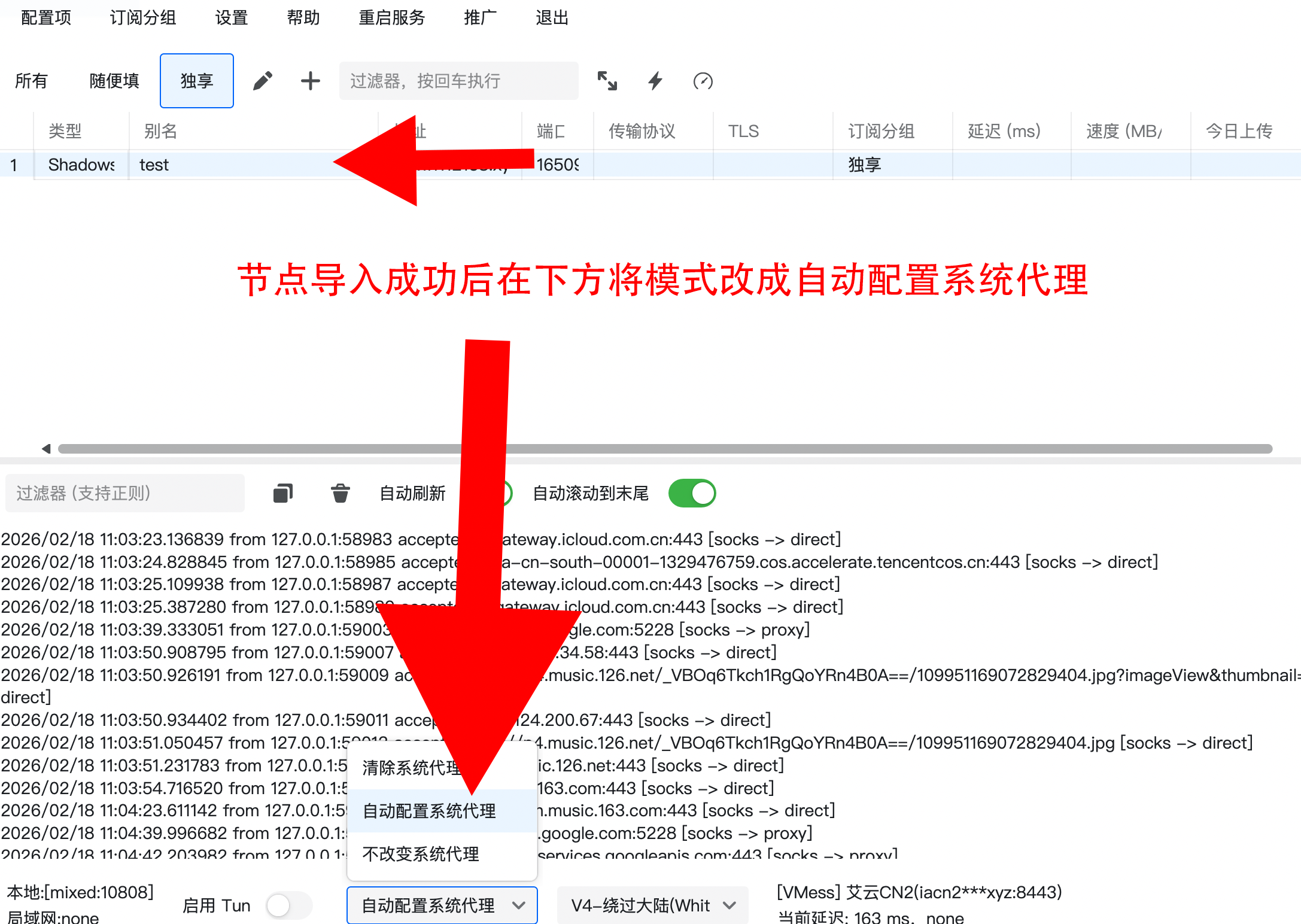
Tips
- 1. Speed depends on your local network. If it's slow, first open a domestic website such as Bilibili to rule out local network issues.
- 2. Each dedicated IP is assigned two routes as a backup in case of occasional failures. Nodes with the same name use the same exit IP, so you can switch between them with confidence.
- 3. If the service is unavailable, test node availability as shown below. If the active node is unavailable, click a working node and press Enter to switch the active node.
- 4. To turn off the proxy, change Auto Configure System Proxy back to Clear System Proxy.
Advanced: Manually set routing to fix slow domestic websites
1. Find the domain in the log box
Routing is domain-based. Sometimes misjudgments occur, routing domestic sites through proxy (labeled proxy). For example, if you visit Lingxing, you can find its domain in the log:
- As shown, you might see direct. 'direct' means the proxy is bypassed. If the route is 'direct', the slowness is an issue with the website itself, not the proxy.
- If the domain shows proxy, that's the cause of slowness: domestic site routed through proxy. We can fix this with custom routing.
2. Set Custom Routing
Go to: Settings - Routing Settings - V4 - Bypass Mainland (Whitelist) - Bypass Chinese domains
In the Domain box, add an English comma , at the end of the last line, press Enter to start a new line, and add the domain you want to direct connect. Example:
regexp:lingxing(This matches any domain containing 'lingxing' for direct connect)domain:lingxing.com(This matches any domain ending in lingxing.com, e.g. lx-ai.lingxing.com, but not lingxingerp.com)
1. Click the link to download and install
2. Install Software
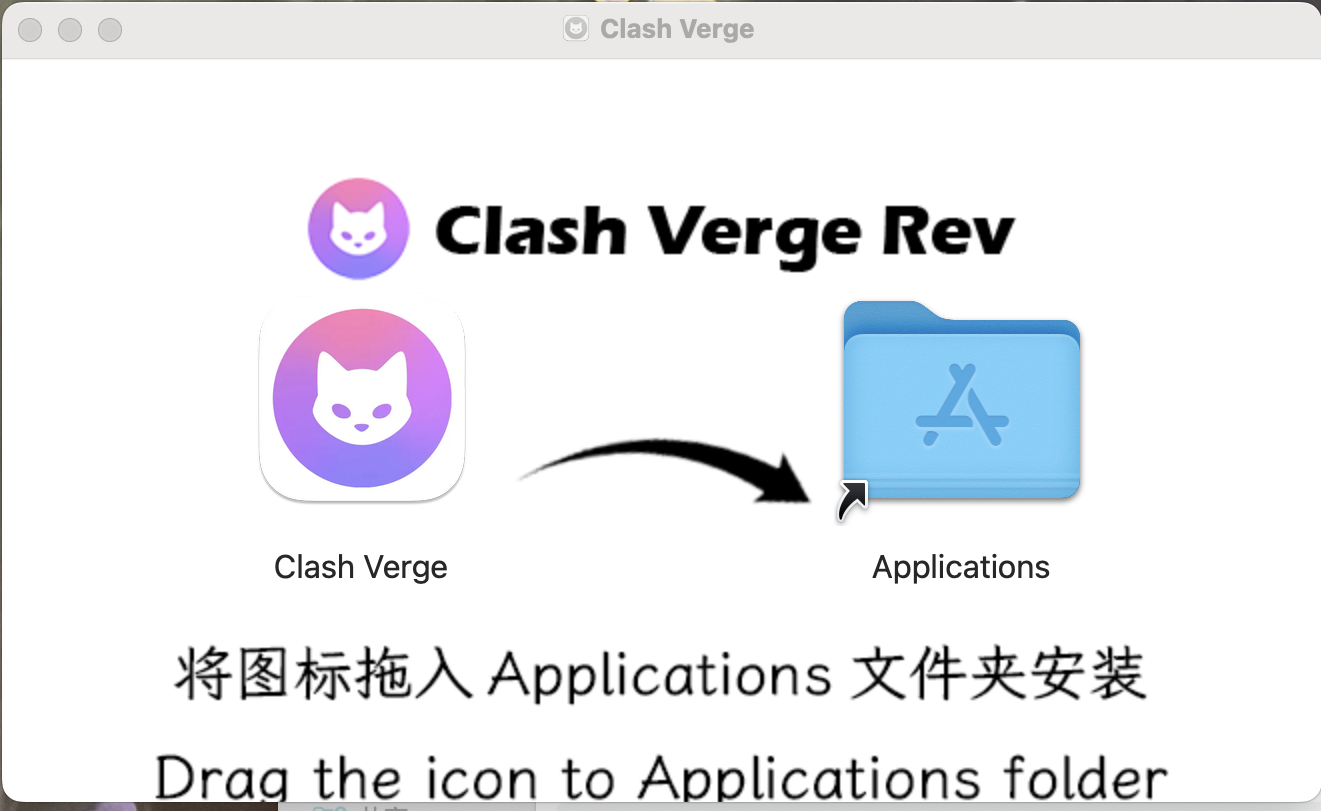
Step 1: Open the downloaded .dmg file
Step 2: Open Terminal app and enter the code
1. Open the 'Terminal' app (found in Applications > Utilities).
2. Enter the following command and press Enter:
sudo xattr -d com.apple.quarantine /Applications/Clash\ Verge.app3. Enter your Mac password (invisible as you type) and press Enter.
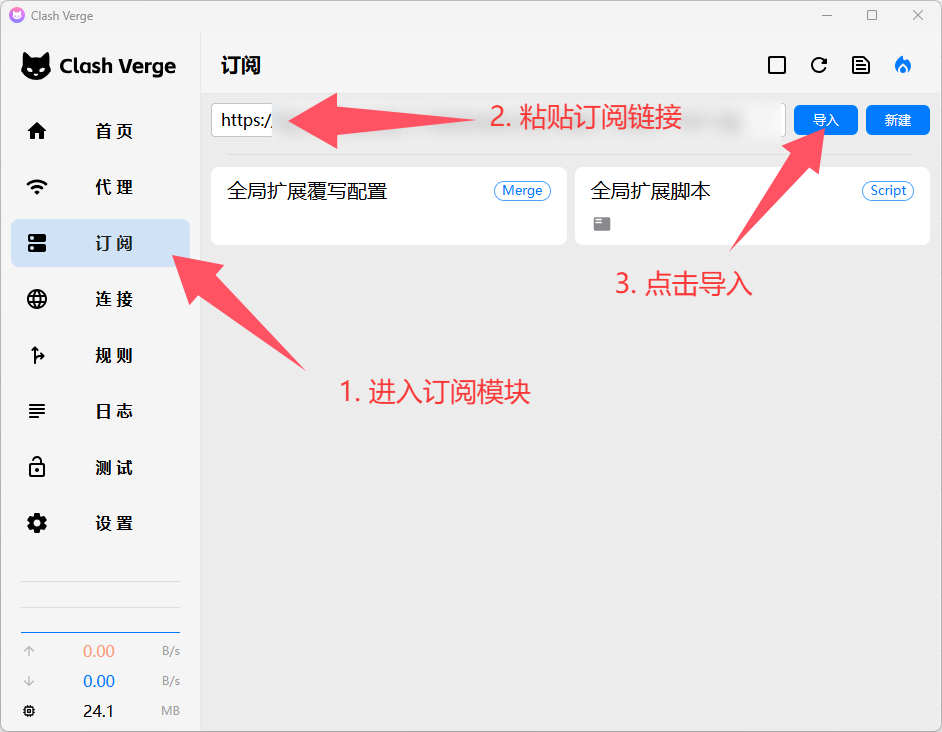
3. Import Subscription Link
4. Turn on Proxy
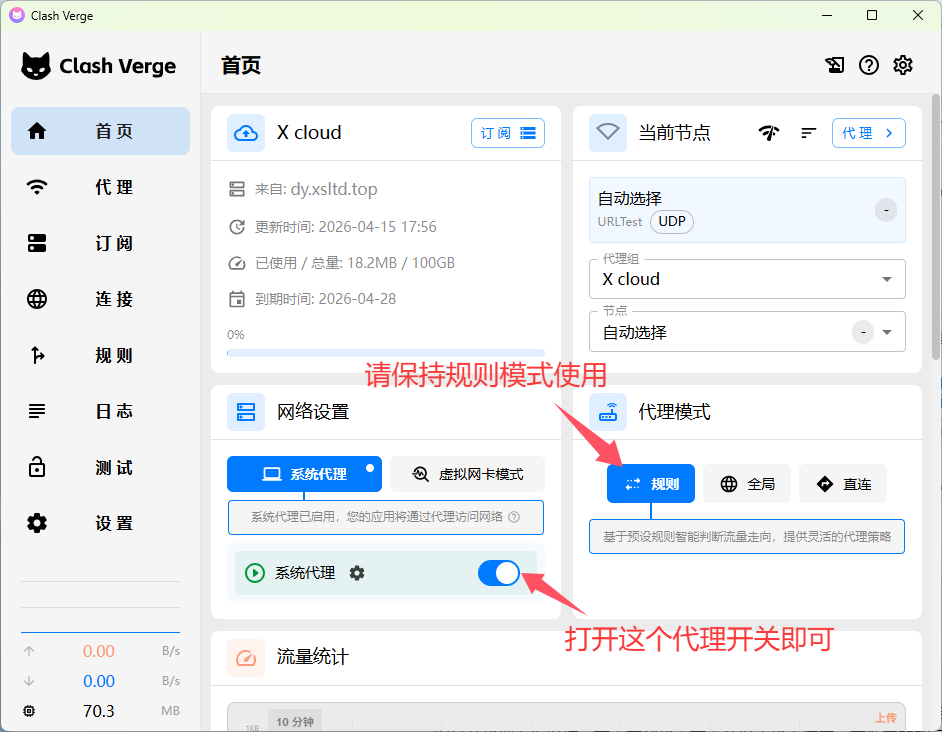
Notes
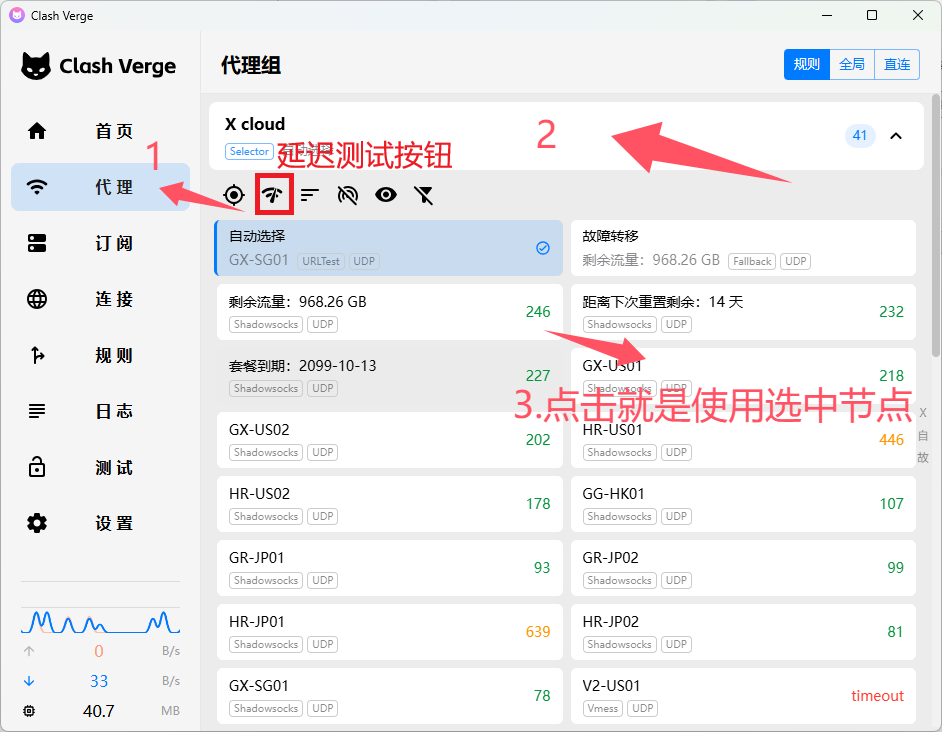
- 1. How to check if nodes are working: Click Proxy, click Delay Test. A number means it's available; timeout/error means unavailable.
- 2. If all nodes are unavailable, try updating the subscription (make sure connection is turned off). Sometimes it takes a few tries.
- 3. Speed depends on your local network. If it's slow, please check your local connection first.
- 4. Node naming: Region prefix + ISP optimization suffix.
By default, it auto-selects working nodes. To manually pick a fixed node, open the proxy panel as shown. Numbers on the right are delay (not speed). Any node with a number works. Do not change other settings if you don't understand them.