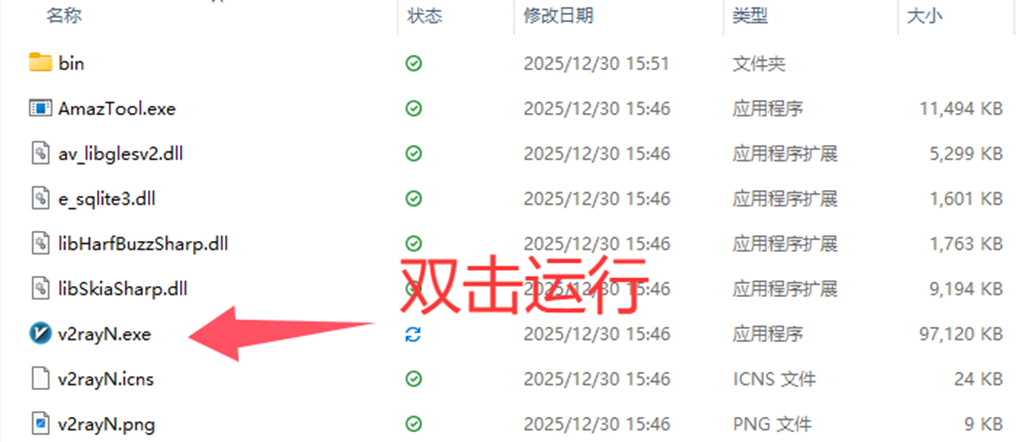
1. Download V2rayN - core and extract fully

2. Import Nodes
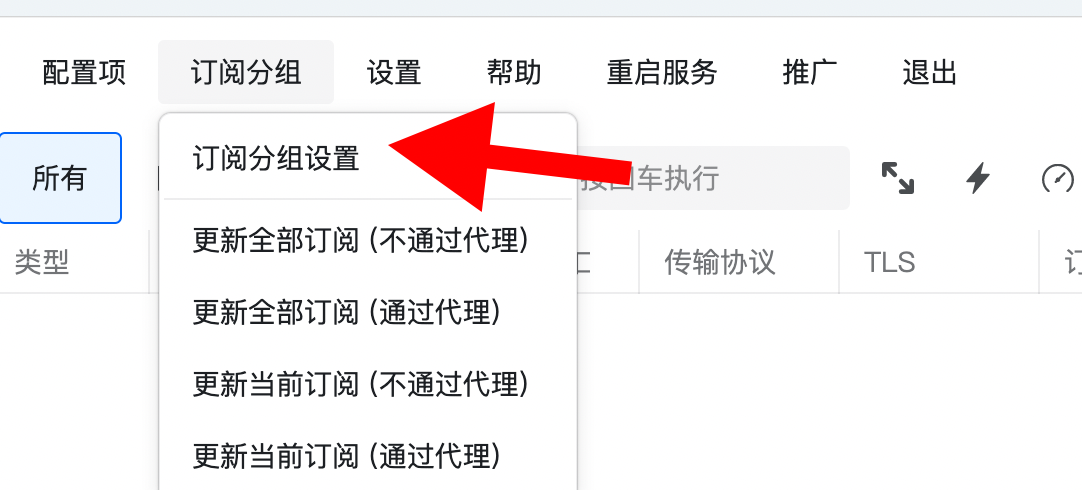
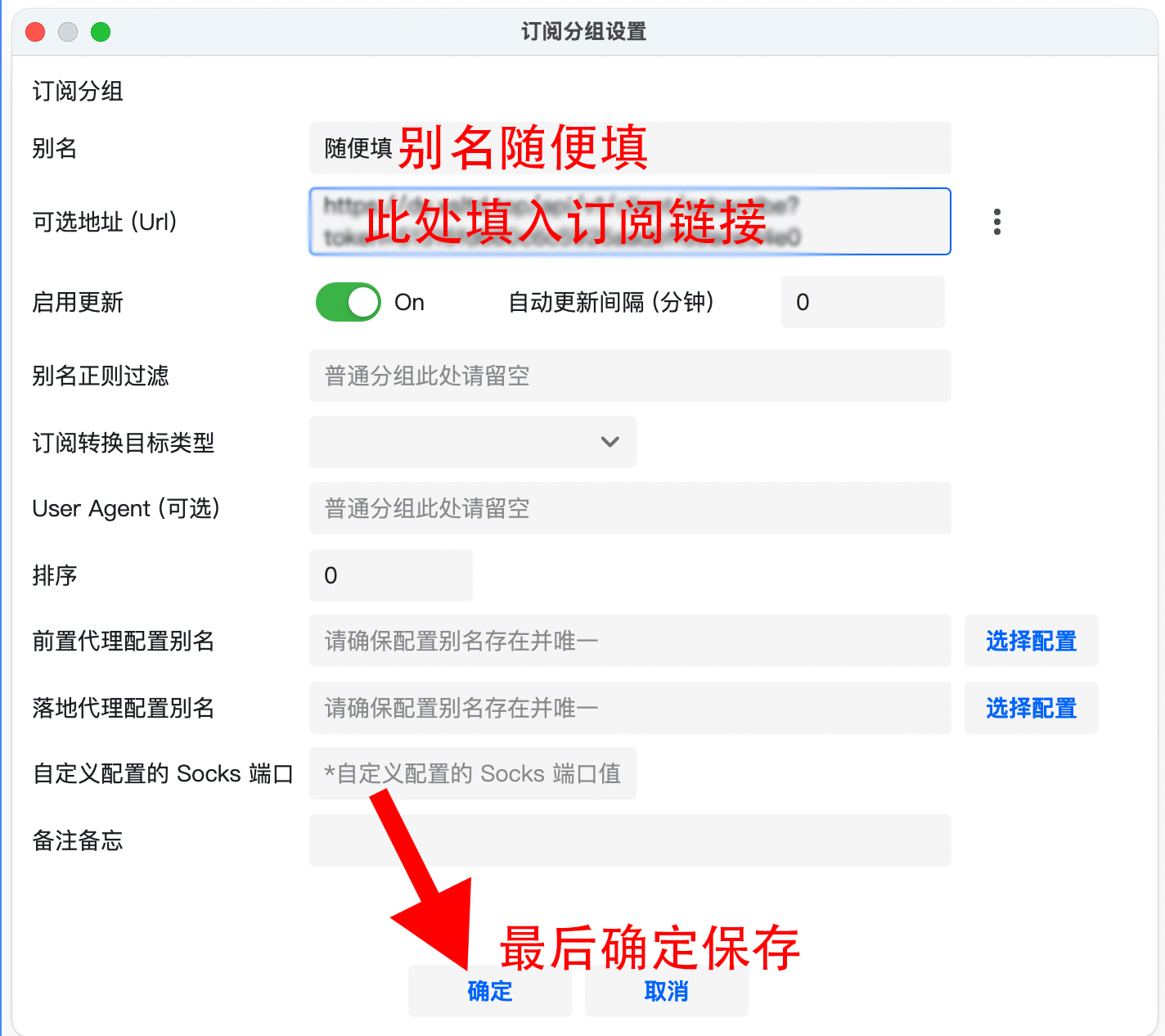
1. Click Subscription Group - Subscription Group Settings
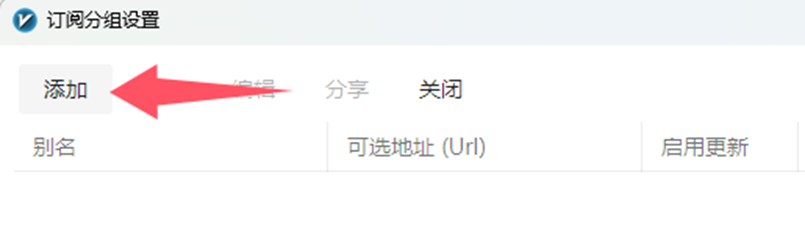
2. Click Add, enter the subscription link in Optional Address, then Save
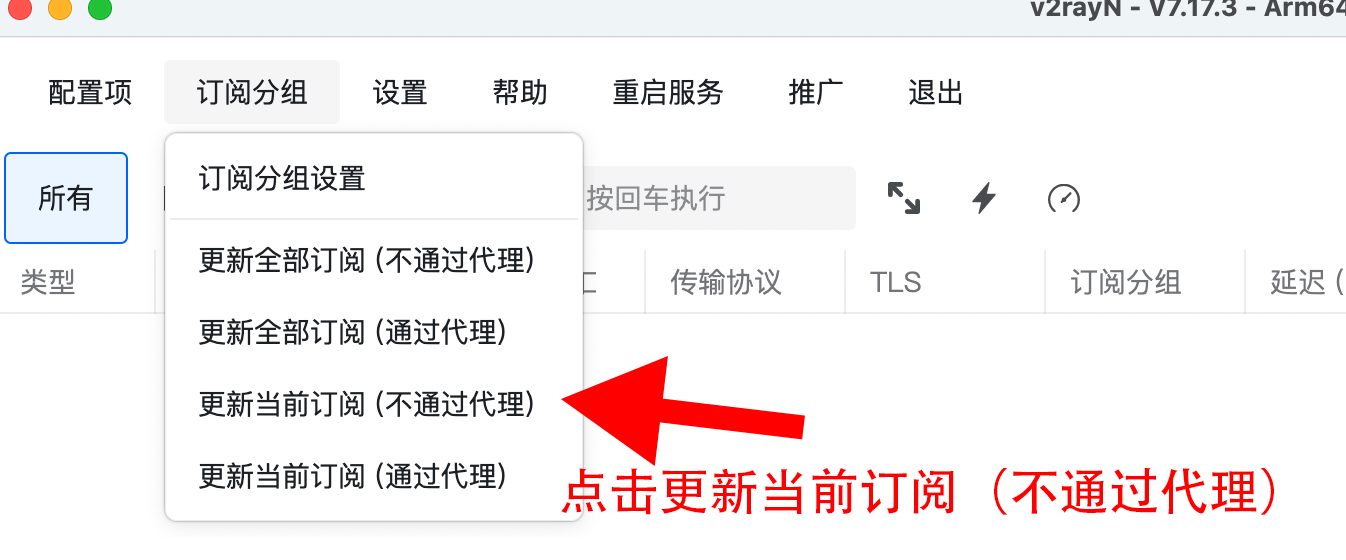
3. Click Subscription Group - Update Current Subscription (without proxy)
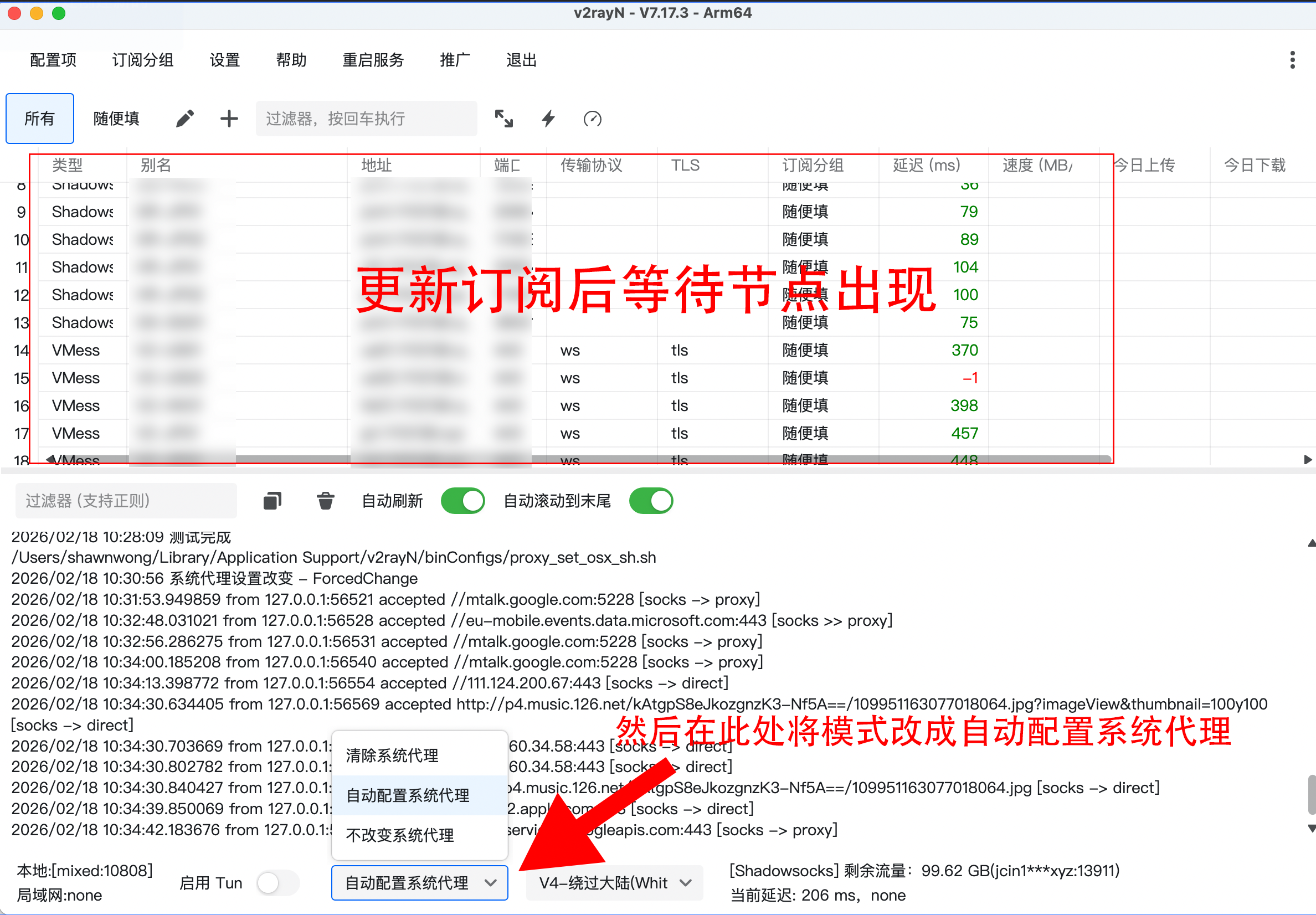
4. After the nodes appear, change Clear System Proxy at the bottom to Auto Configure System Proxy
Tips (Notes)
- 1. Speed depends on your local network. If it's slow, first open a domestic website such as Bilibili to rule out local network issues.
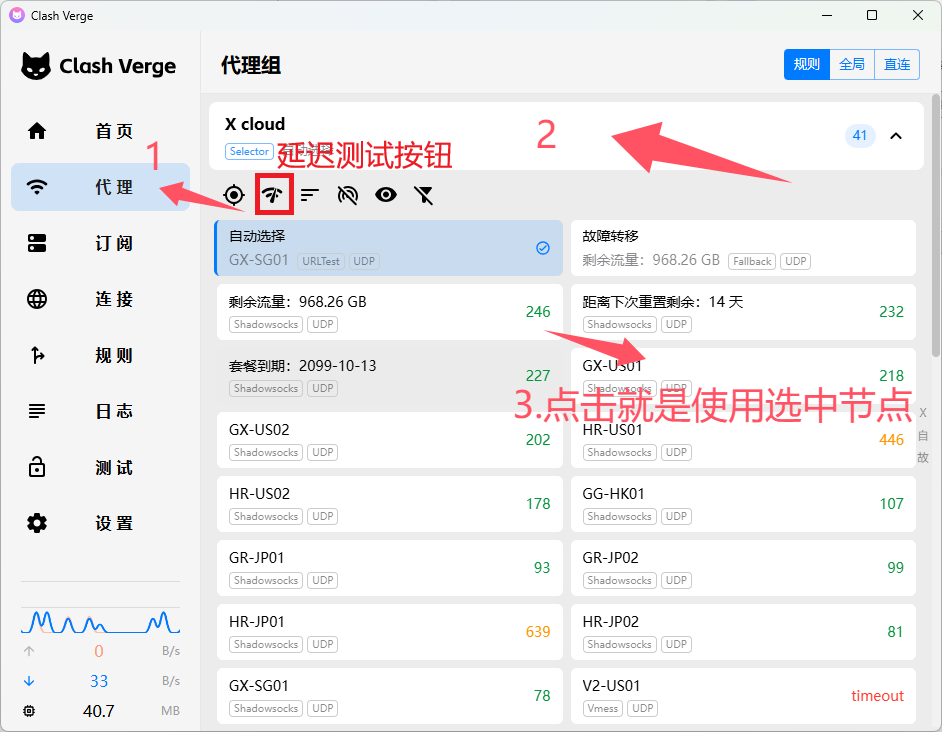
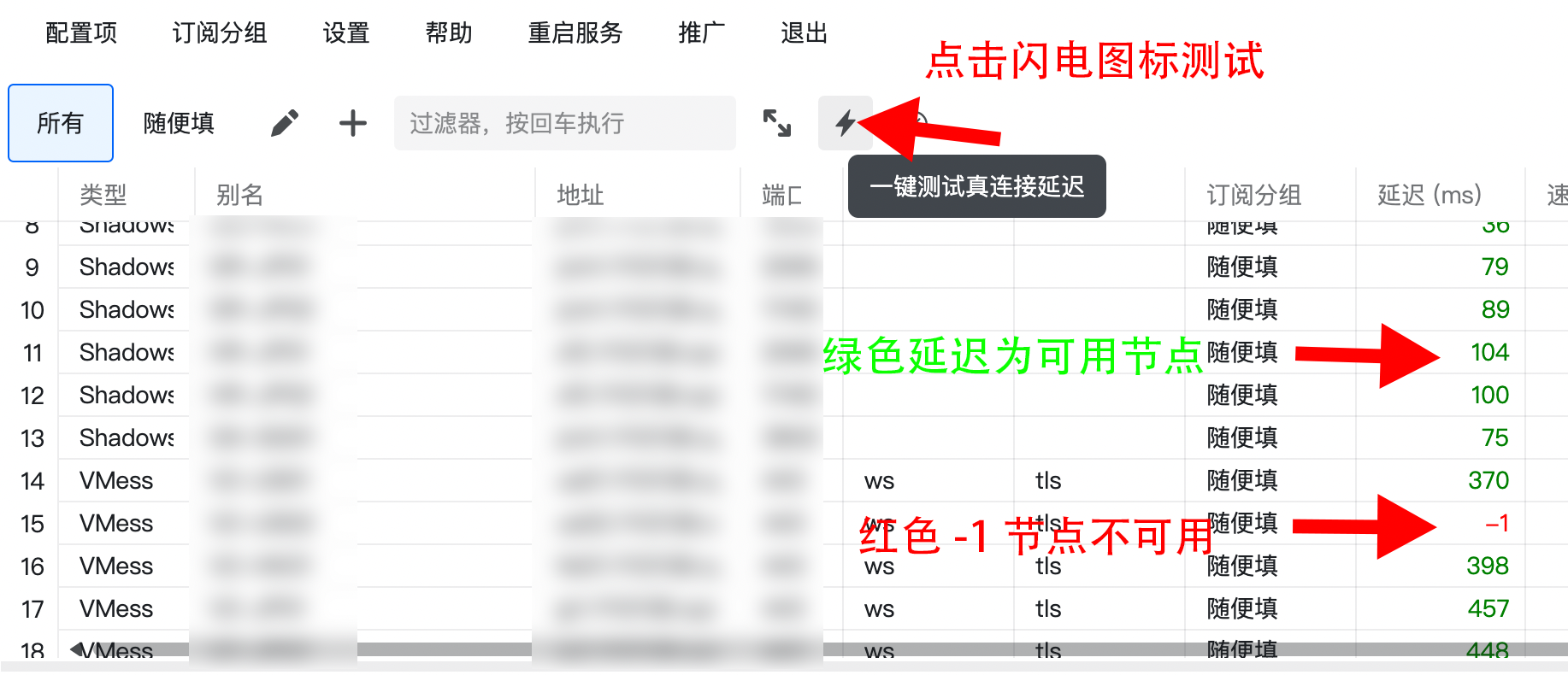
- 2. If the service is unavailable, test node availability as shown below. If the active node is unavailable, click a working node and press Enter to switch the active node.
- 3. To turn off the proxy, change Auto Configure System Proxy back to Clear System Proxy.
- 4. Node naming: The prefix indicates the node region, while the suffix indicates ISP optimization. Optimized nodes work with all ISPs but may have a higher traffic multiplier.
Advanced: Manually set routing to fix slow domestic websites
1. Find the domain in the log box
Routing is domain-based. Sometimes misjudgments occur, routing domestic sites through proxy (labeled proxy). For example, if you visit Lingxing, you can find its domain in the log:
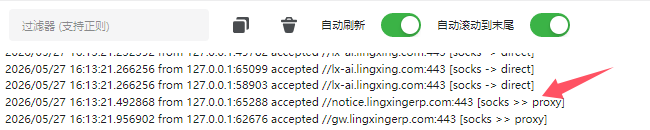
- As shown, you might see direct. 'direct' means the proxy is bypassed. If the route is 'direct', the slowness is an issue with the website itself, not the proxy.
- If the domain shows proxy, that's the cause of slowness: domestic site routed through proxy. We can fix this with custom routing.
2. Set Custom Routing
Go to: Settings - Routing Settings - V4 - Bypass Mainland (Whitelist) - Bypass Chinese domains
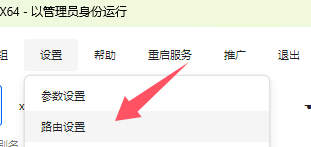
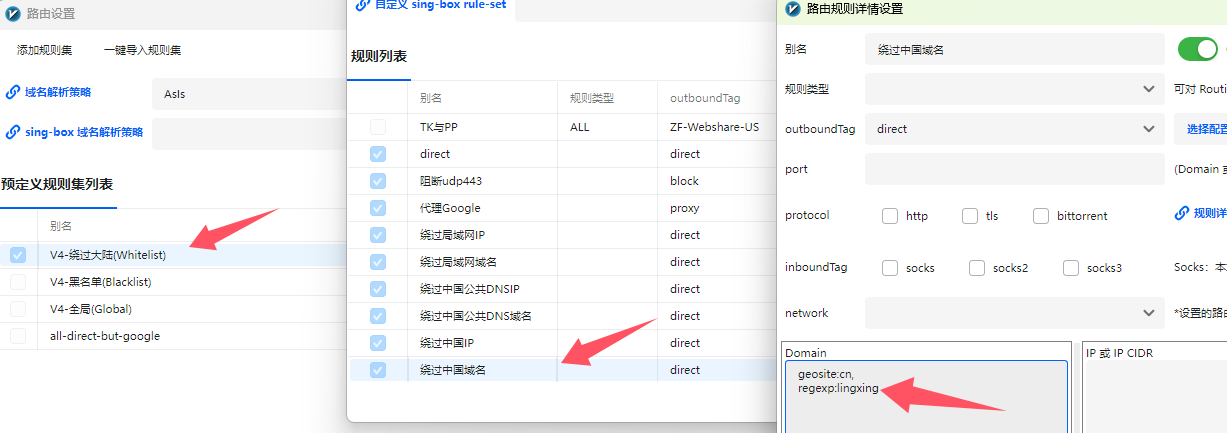
In the Domain box, add an English comma , at the end of the last line, press Enter to start a new line, and add the domain you want to direct connect. Example:
regexp:lingxing(This matches any domain containing 'lingxing' for direct connect)domain:lingxing.com(This matches any domain ending in lingxing.com, e.g. lx-ai.lingxing.com, but not lingxingerp.com)
1. Copy the node, then press Ctrl+V in the app to paste and import it, or click Configuration - Import Share Links from Clipboard
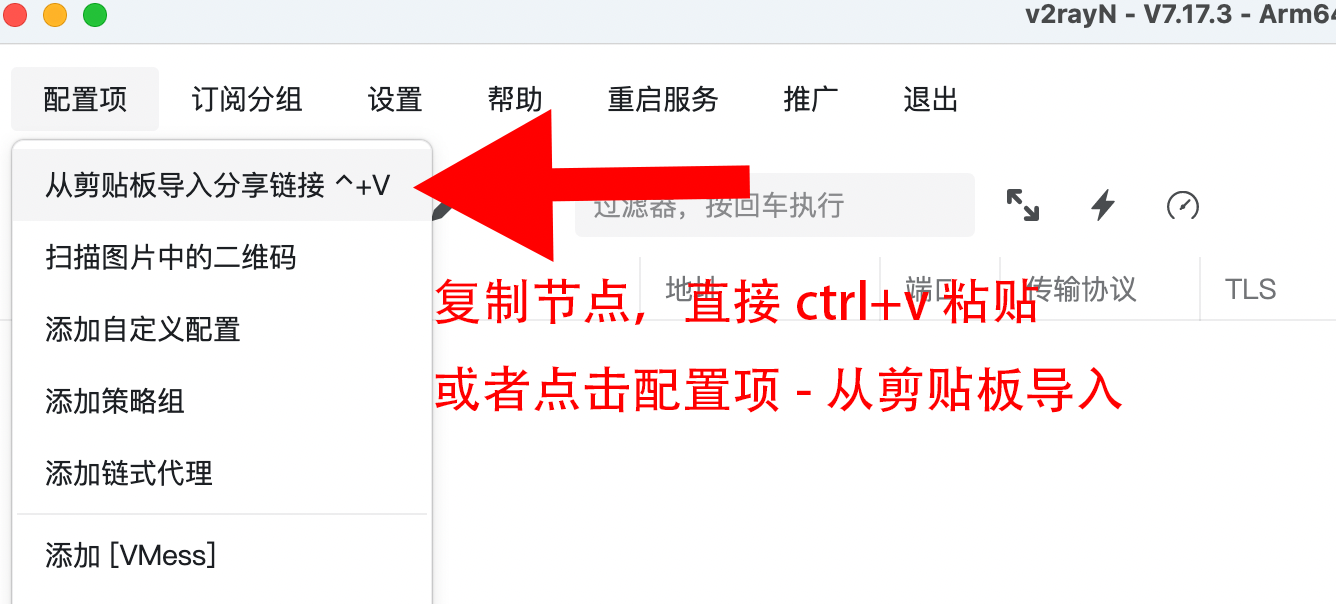
2. After the nodes appear, change Clear System Proxy at the bottom to Auto Configure System Proxy
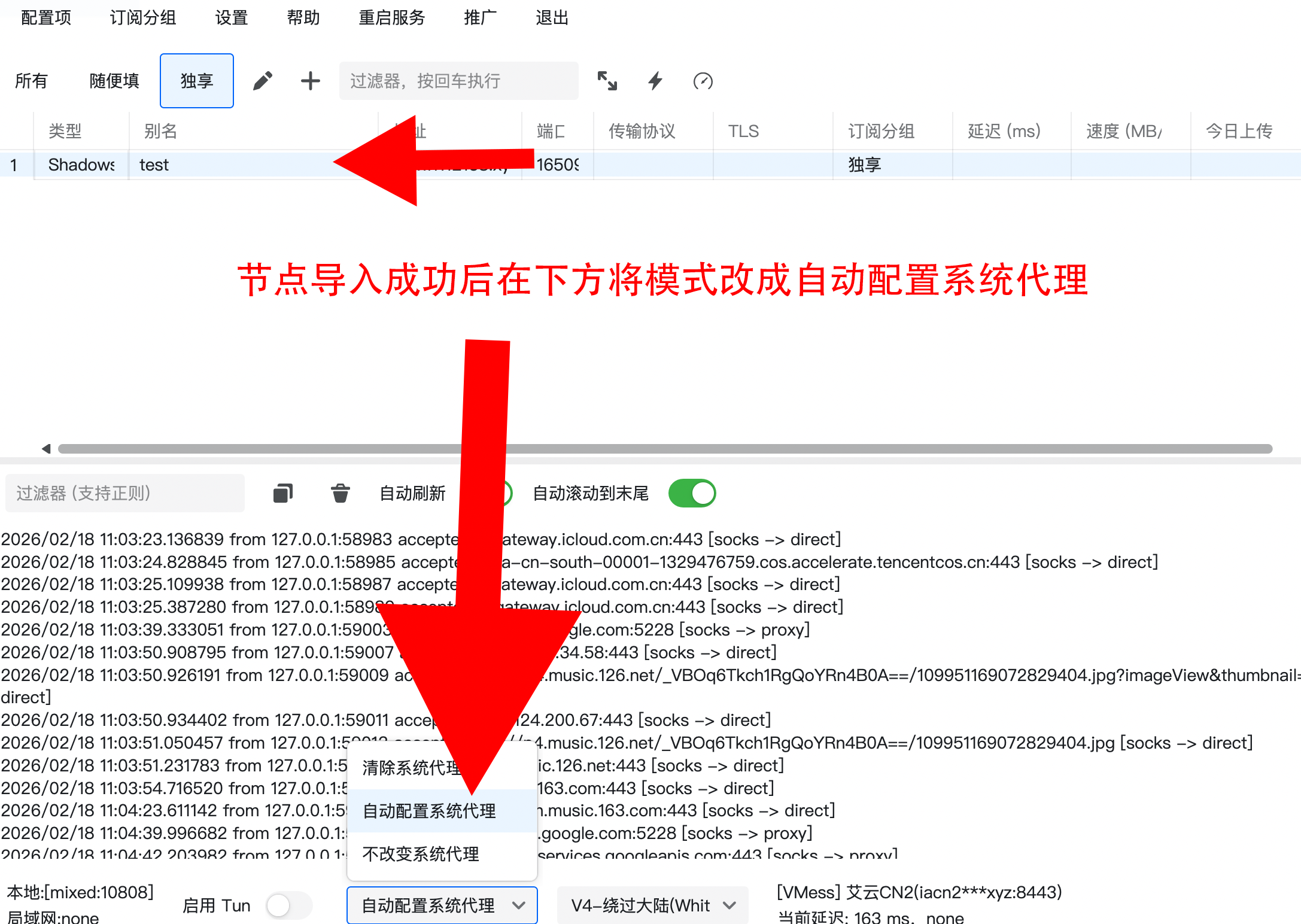
Tips
- 1. Speed depends on your local network. If it's slow, first open a domestic website such as Bilibili to rule out local network issues.
- 2. Each dedicated IP is assigned two routes as a backup in case of occasional failures. Nodes with the same name use the same exit IP, so you can switch between them with confidence.
- 3. If the service is unavailable, test node availability as shown below. If the active node is unavailable, click a working node and press Enter to switch the active node.
- 4. To turn off the proxy, change Auto Configure System Proxy back to Clear System Proxy.
Advanced: Manually set routing to fix slow domestic websites
1. Find the domain in the log box
Routing is domain-based. Sometimes misjudgments occur, routing domestic sites through proxy (labeled proxy). For example, if you visit Lingxing, you can find its domain in the log:
- As shown, you might see direct. 'direct' means the proxy is bypassed. If the route is 'direct', the slowness is an issue with the website itself, not the proxy.
- If the domain shows proxy, that's the cause of slowness: domestic site routed through proxy. We can fix this with custom routing.
2. Set Custom Routing
Go to: Settings - Routing Settings - V4 - Bypass Mainland (Whitelist) - Bypass Chinese domains
In the Domain box, add an English comma , at the end of the last line, press Enter to start a new line, and add the domain you want to direct connect. Example:
regexp:lingxing(This matches any domain containing 'lingxing' for direct connect)domain:lingxing.com(This matches any domain ending in lingxing.com, e.g. lx-ai.lingxing.com, but not lingxingerp.com)
1. Click the link to download and install
2. Import Subscription Link
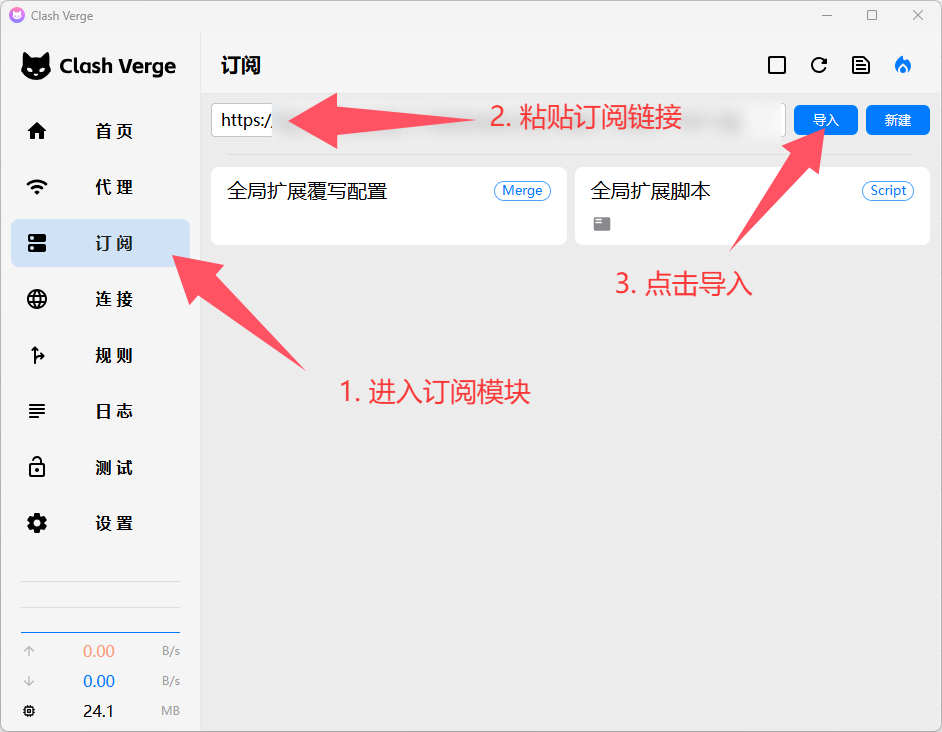
3. Turn on Proxy
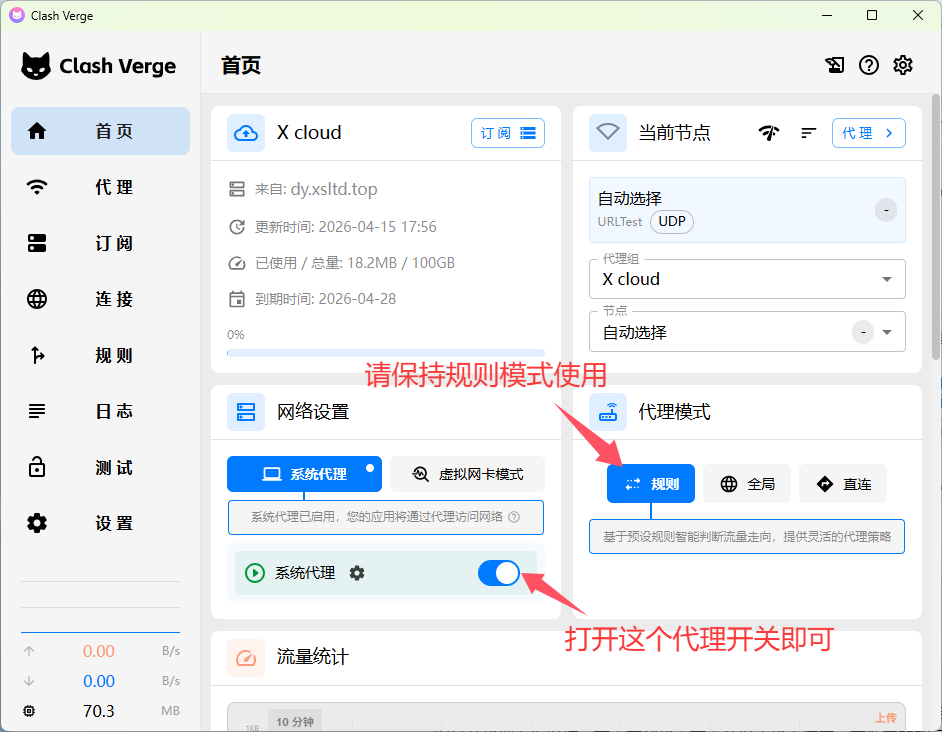
Notes
- 1. How to check if nodes are working: Click Proxy, click Delay Test. A number means it's available; timeout/error means unavailable.
- 2. If all nodes are unavailable, try updating the subscription (make sure connection is turned off). Sometimes it takes a few tries.
- 3. Speed depends on your local network. If it's slow, please check your local connection first.
- 4. Node naming: Region prefix + ISP optimization suffix.
By default, it auto-selects working nodes. To manually pick a fixed node, open the proxy panel as shown. Numbers on the right are delay (not speed). Any node with a number works. Do not change other settings if you don't understand them.